How to use the Apple iPad MDT
installed in each truck.
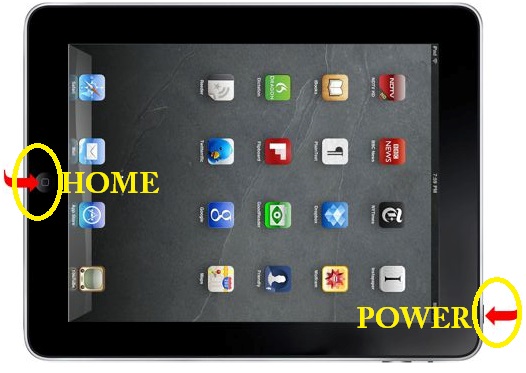
If the iPad
is powered off when you get into the truck simply press the small power button
on the corner (side) of the iPad.
The left side is the “Home” button and the right side is the “Power”
button:
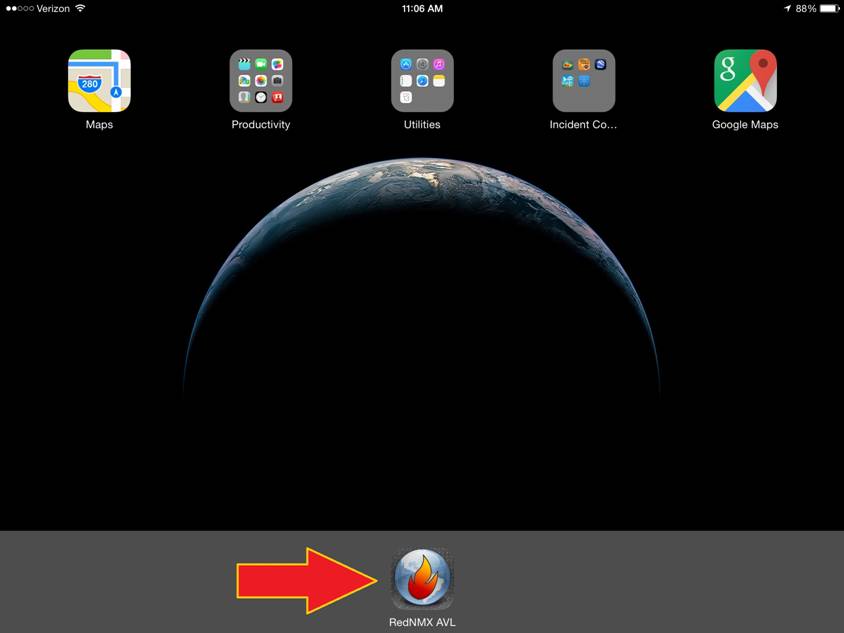
Once the iPad is
powered on you can open RedAlert
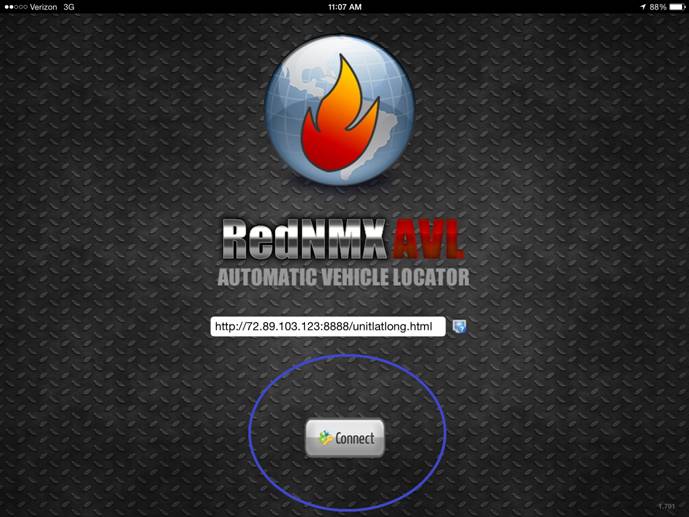
Once in RedAlert if
it does not auto connect simply tap connect:
Once connected it
will show any active calls. Simple tap the “assign to call” on the call you are
responding to:
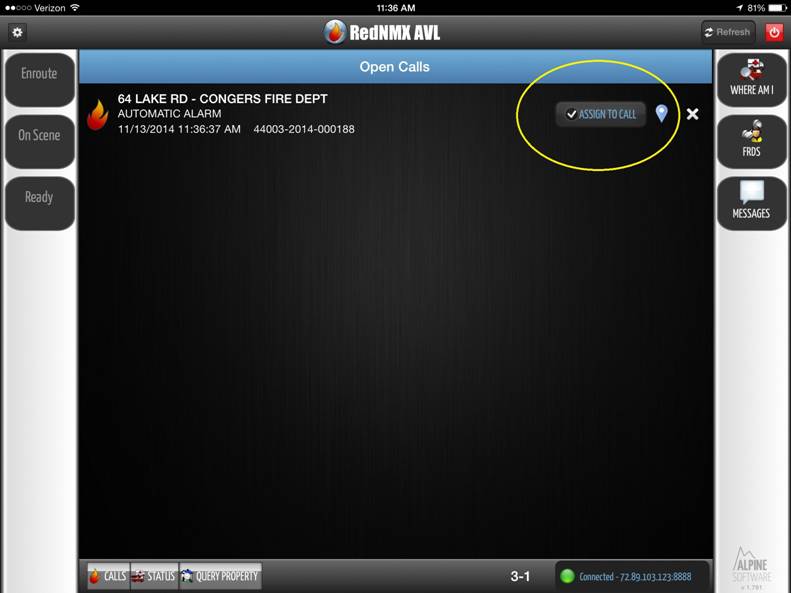
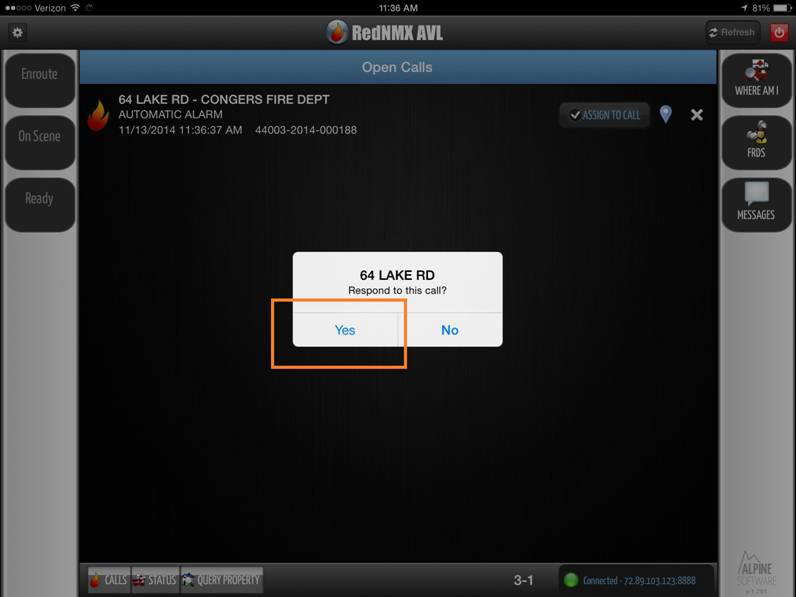
Once you tap “assing
to call” it will confirm the address you wish to respond to. Now simply tap YES
Once you assign the iPad to the call and the
apparatus you are riding in is responsing tap the “Enroute” icon on the left
side. Once on scene tap the “On Scene” Icon. When you are on a signal 14 tap
the “Ready” icon. The 3 icons described are all on the left side of the tablet.
Once you are “enroute” you can navigate the
buttons on the right side of the tablet.
If you tap “Where am I” it will locate on
the map where the current location of the truck you are in.
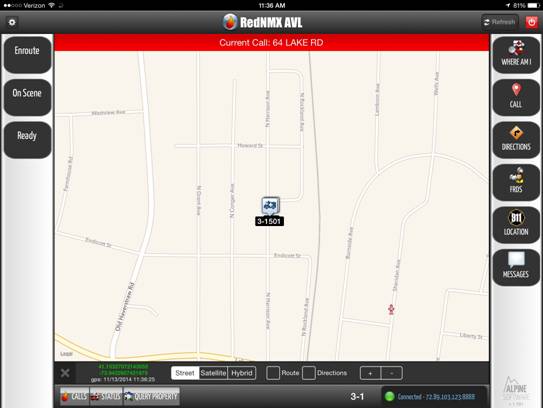
If you would like
dispatch / preplan information tap the “location” icon:
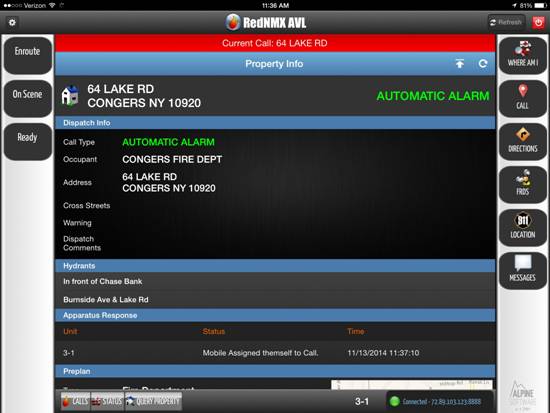
If you would like to
see the address of the call on a map tap the “Call” icon:
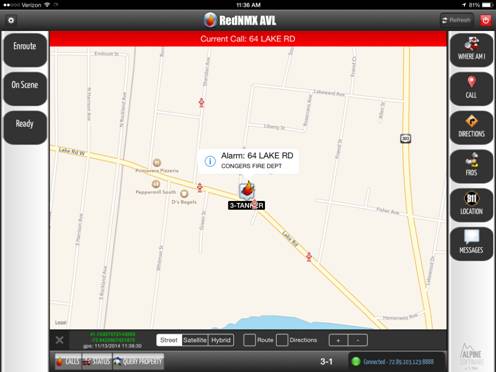
To get a list of directions tap the
“Directions” icon
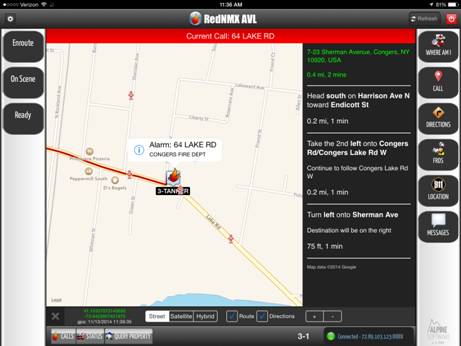
To send a message to any of the other
trucks currently signed onto the RedAlert system tap
“message” and select the unit to send a message to.
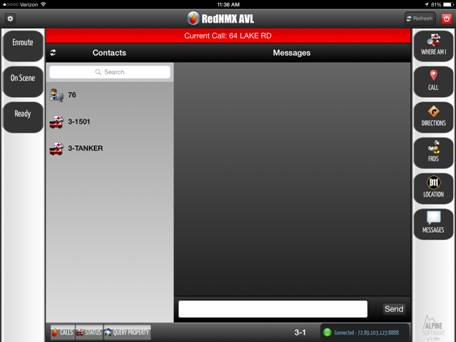
If you would like to respond to
another call tap the “calls” icon on the bottom left of the screen. You can
also see the status of the other apparatus by clicking “status” or look up
another address by taping “Query Property”

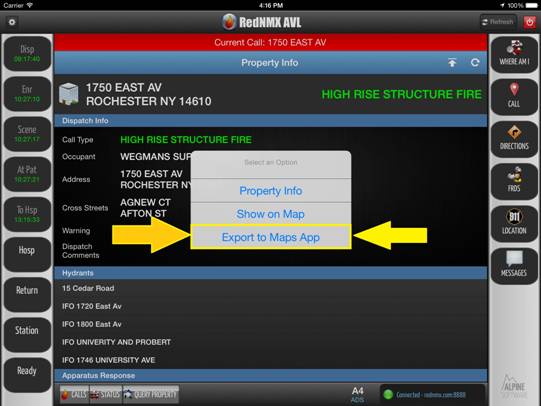
If you would like turn by turn
directions (like a GPS unit) tap the “Location” icon and click the address
anywhere in the Red Section at the top of the iPad.
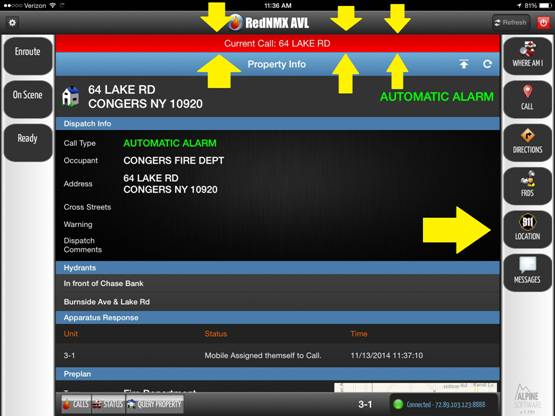
It will prompt you to “Export to Maps
App” tap that and it will open the Google maps app.
Simply tap start once in the Google
maps app and wit will give you voice guided turn by turn directions.
To return to RedAlert
hit the physical “Home” button on the iPad itself and tap RedAlert.